
Set up your Doge Miner
Doge Digger
Doge Driller
What's in the Box
-
Hammer Miner
-
Power Supply
-
Stand and mounting screws
Before You Begin
You'll need:
-
A Wi-Fi network (2.4GHz required)
-
Your Wi-Fi password
-
A Litecoin/Dogecoin wallet
Step 1: Assemble the Miner
-
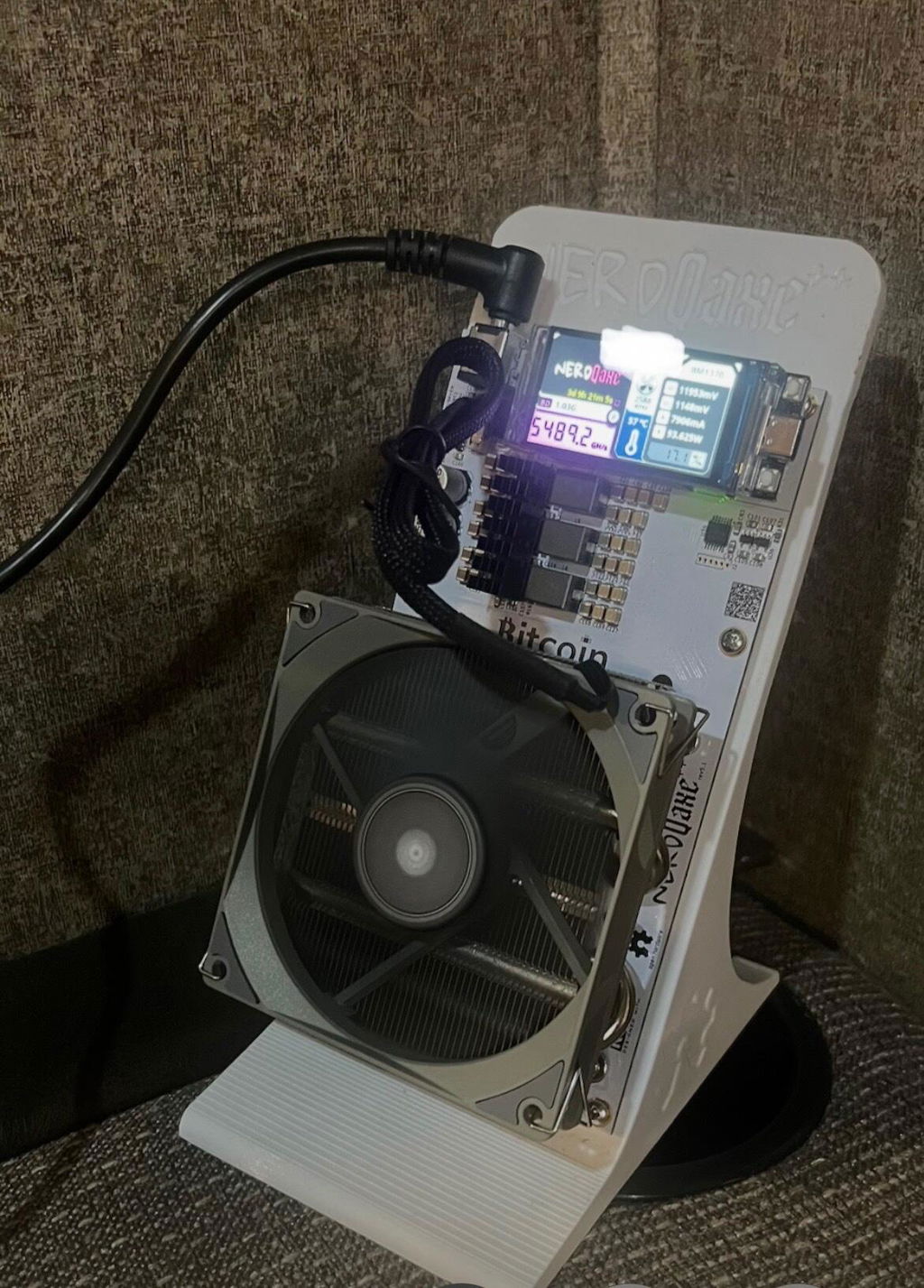
Remove the miner and accessories from the box.
-
Attach the stand using the included screws if not already connected. You may have to carefully remove the screen to get to the top two on the Doge Digger. Slide the stand into the base
-
Ensure the miner is placed on a flat surface with good airflow around the fan and heatsink.
Step 2: Connect Power
-
Connect the included power supply to miner.
-
Plug the power supply into a wall outlet.
-
The display will illuminate and the miner will begin booting.
Step 3: Connect the Miner to Your Network
Option A: Wi-Fi Setup
-
After booting, the miner will display a setup screen with two QR codes you can scan if setting up with a phone.

-
On your phone or computer, connect to the temporary Wi-Fi network broadcast by the miner.
-
A setup page should automatically open. If it does not, enter the address shown on the screen into your browser (192.168.4.1)
-
Click the "Net" tab up top to go to WiFi settings. Select your home Wi-Fi network.
-
Enter your Wi-Fi password.
-
Click Save and then Restart.
Option B: Ethernet Setup
-
Connect an Ethernet cable from your router to the miner.
-
The miner will automatically obtain an IP address from your network.
Step 4: Access the Web Dashboard
- On the miner's screen, there are two buttons. Press the one that toggles between display screen to display your miners IP address

-
Open a web browser and enter the IP address in the URL bar
-
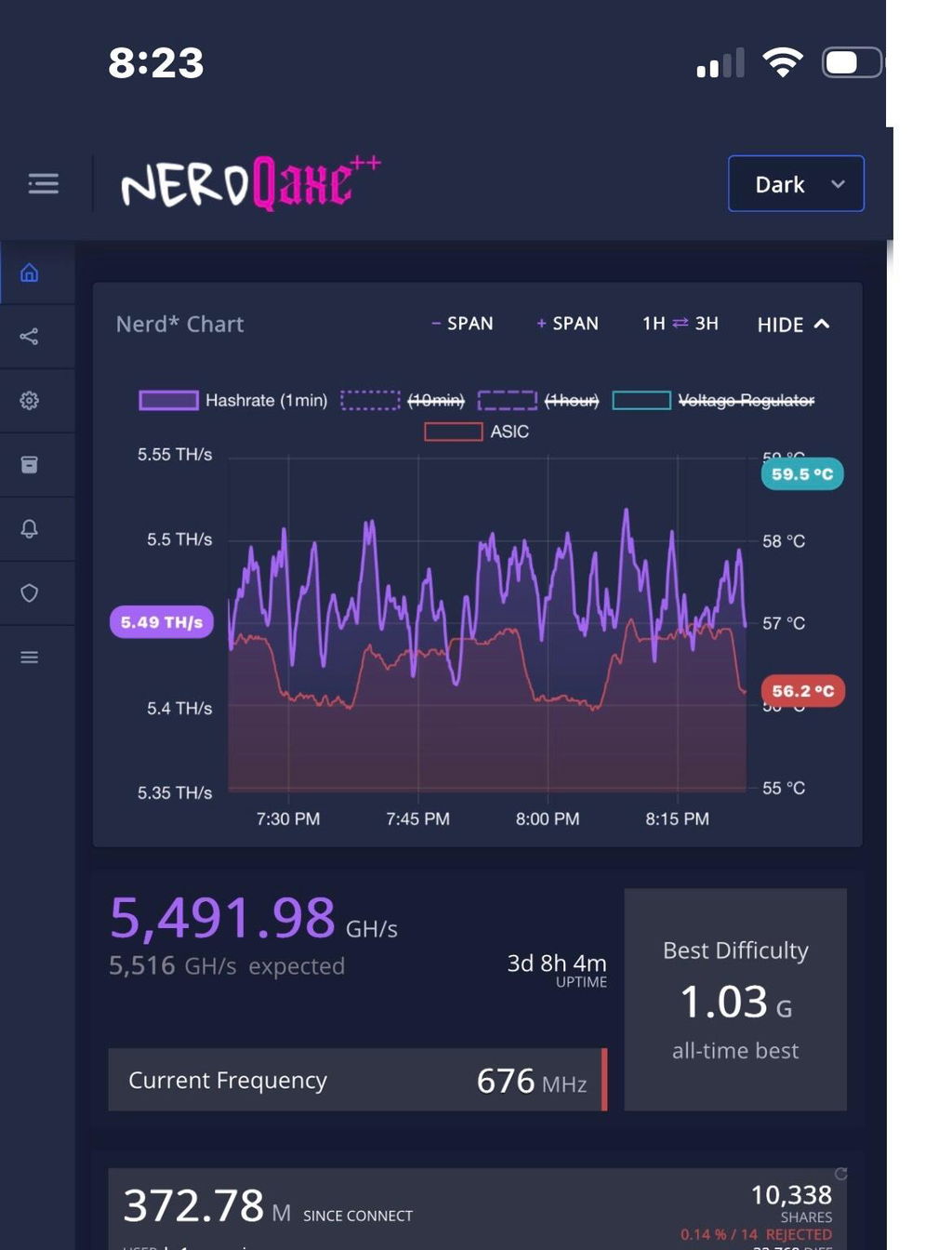
The Hammer Miner dashboard will load.
-
Verify the device is online and reporting system information.
Step 5: Configure Your Mining Pool
-
Navigate to Pool Tab

-
Enter your pool information. We recommend using our Doge pool. Note: You must use a Doge pool with this miner
Stratum URL
doge.bitcoinmerch.com:3333
Stratum User
YOUR Doge Wallet address goes here. It will begin with an uppercase letter DPassword
x
-
Save the configuration.
-
Click Save and Restart Miner.
Step 6: Verify Mining
After several minutes:
-
Hashrate should appear on the dashboard.
-
Pool status should show Connected.
-
Shares should begin submitting successfully.
Troubleshooting
Miner Won't Connect to Wi-Fi
-
Verify the Wi-Fi password is correct.
-
Move the miner closer to the router.
-
Reboot the miner and try again.
Dashboard Won't Load
-
Confirm your device is on the same network.
-
Check the IP address shown on the display.
-
Try using Ethernet for initial setup.
Hashrate Shows Zero
-
Verify pool settings.
-
Check your DOGE address
-
Restart the miner after making changes.
Safety Tips
-
Use only the included power supply.
-
Keep ventilation openings unobstructed.
-
Avoid operating in damp or high-humidity environments.
-
Keep dust buildup to a minimum for best performance.
Happy Mining!