
NerdAxe Gaia Setup Guide
Buy the Nerdaxe Gaia here
1. Overview and what you need
The NerdAxe Gaia is an open-source Bitcoin miner built around one Bitmain BM1373 chip, rated at about 2.4 TH/s and 26 to 30 W at stock settings. Setup takes about 5 minutes: power it on, join its setup Wi-Fi, connect it to your home network, then enter the pool and your Bitcoin address.
|
Spec |
Gaia |
|---|---|
|
ASIC |
1 × Bitmain BM1373 (3nm) |
|
Hashrate (stock) |
about 2.4 TH/s |
|
Power |
about 26 to 30 W |
|
Efficiency |
about 10 to 12.5 J/TH |
|
Stock settings |
350 MHz, 940 mV core voltage |
|
Controller |
ESP32-S3 |
|
Display |
1.9" color TFT |
|
Cooling |
40 mm 5V PWM fan |
|
Network |
2.4 GHz Wi-Fi only |
|
Power supply |
12V / 6A (72 W) |
|
USB-C |
Firmware flashing and recovery |
You will need:
- Your Gaia and its power supply
- A phone or computer with Wi-Fi
- Your home Wi-Fi name and password, written down exactly as they are (capital letters matter)
- A Bitcoin receiving address (it starts with bc1), ready to copy and paste
2. Before you start: the most common mistakes
Nearly every setup problem comes from one of four mistakes. Read this table first and your Gaia will most likely work on the first try.
|
Mistake |
What happens |
How to avoid it |
|---|---|---|
|
Typo in the Wi-Fi name or password |
The miner shows "No AP Found" and never connects |
Type both exactly as they appear in your phone's Wi-Fi settings or on your router, slowly, with capital letters exactly as written |
|
Using a 5 GHz Wi-Fi network |
The miner cannot connect, because the Gaia only works with 2.4 GHz Wi-Fi |
Use your router's 2.4 GHz network. Section 5 explains what this means |
|
Typing the Bitcoin address by hand |
One wrong character makes the address invalid and the miner will not work |
Copy the address from your wallet and paste it. Never type it |
|
Using an address from another coin |
The miner will not run correctly, and rewards could be lost |
Use a Bitcoin address that starts with bc1, 3, or 1. Addresses starting with 0x, ltc1 or D are not Bitcoin |
3. Safety and placement
Use the power supply that came with your Gaia, and keep the miner in an open, dry, ventilated spot.
- Use the supplied power supply. If you use a third-party supply, check that its output is 12V before plugging in. The wrong voltage can damage the miner and create a fire risk.
- Do not overload outlets. Avoid sharing one outlet or cheap extension cord with other high-power devices.
- Give it airflow. The chip runs hot, typically 60 to 70°C (140 to 158°F). Keep the miner out of enclosed spaces, away from curtains and paper, on a stable, nonflammable surface.
- Keep it dry. Unplug the miner before touching the board or moving it.
- Handle gently. Avoid drops and knocks, and press on the display carefully.
- Keep fingers, cables and pets away from the fan.
- Do not modify frequency / core voltage settings This voids your warranty.
4. Power on and join the setup network
On first boot the Gaia broadcasts its own Wi-Fi network, and you use it to tell the miner about your home network.
- Plug the power supply into the Gaia, then into the wall. Use a stable outlet.
- Wait for the display to light up. It shows a setup Wi-Fi name that looks like Nerdaxe_78B1 (the last four characters differ on every unit).
- On your phone or computer, open the Wi-Fi settings and find that exact name.
- Connect to it.
- A setup page should open on its own. If it does not, open a browser and go to http://
192.168.4.1.


Notes
- On a laptop or desktop, do not tick "Connect automatically" for this network. It can cause Wi-Fi problems later.
- If you have an ASUS router, turn off AI Protection in the router settings first. It can block the miner from connecting.
5. Connect to your home Wi-Fi
The Gaia can only join a 2.4 GHz Wi-Fi network. Most routers broadcast both 2.4 GHz and 5 GHz, so pick the 2.4 GHz one.
In plain words: what is 2.4 GHz Wi-Fi?
Wi-Fi comes in two kinds, a bit like two lanes on a road. The 5 GHz lane is faster but does not reach far. The 2.4 GHz lane is a little slower but reaches farther and passes through walls better. Your phone and laptop can use either lane. The Gaia only has the 2.4 GHz lane, so it can only join a 2.4 GHz network. Mining does not need a fast connection, so this does not slow it down.
Almost every home router offers both lanes. Often they share one Wi-Fi name and the router picks the right lane for each device, so you may not need to do anything. If the Gaia cannot find your network, look for a second name for your Wi-Fi, usually the one without "5G" at the end, and choose that one. Your router's label, its app or your internet provider can tell you the 2.4 GHz name.
- On the setup page, open the Settings tab.
- Type your Wi-Fi name (also called the SSID) exactly as it appears in your phone's Wi-Fi settings or on your router. One wrong letter means the miner cannot find your network, and capital letters and spaces count.
- Enter your Wi-Fi password exactly as it is written on your router or in your phone's Wi-Fi settings. Capital and small letters are different, and spaces count. Type slowly and check it once before you click Save.
- Click Save.
- Click Restart. The Gaia reboots and joins your network.
- When it is connected, the Gaia's display shows its IP address (for example
192.168.1.172). Write it down. - Reconnect your phone or computer to your normal home Wi-Fi.
- Open a browser on that device and type the IP address into the address bar. Your Gaia's dashboard opens.


If it will not connect
- "No AP Found" on the display almost always means a typo in the Wi-Fi name or password. Re-enter both slowly.
- Look-alike characters are easy to mix up: the number 0 and the capital letter O, and the small letter l, the capital letter I and the number 1. If your password has any of these, check it against your router label.
-
Capital letters matter.
Sunshine1andsunshine1are different passwords. - Two Wi-Fi names? Choose the one that does not end in "5G".
- Move the miner closer to the router, away from metal objects.
- Your phone or computer must be on the same Wi-Fi network as the Gaia to open the dashboard.
6. Set your pool and Bitcoin address
We recommend the Bitcoin Merch pool: pool.bitcoinmerch.com on port 3333. Your Bitcoin address goes in the username field, so any rewards are paid to you.
Get your Bitcoin address ready
- Open your Bitcoin wallet app on your phone or computer.
- Tap Receive. Check that the wallet is set to Bitcoin (BTC), not another coin.
- Tap the Copy button next to the address. Most wallets show a "Copied" message.
- If your wallet is on your phone but you are setting up the miner on a computer, send the address to yourself in an email or text message, then copy it from there.
Make sure it is a Bitcoin address, not another coin
A Bitcoin address almost always starts with bc1 and is followed by a long mix of letters and numbers. Older Bitcoin addresses can start with 1 or 3. Addresses from other coins look different and will not work:
- 0x is an Ethereum-style address.
- ltc1 is a Litecoin address.
- D is usually a Dogecoin address.
- bitcoincash: is a Bitcoin Cash address.
- Anything that looks like an email address, or starts with lnbc, is a Lightning address. Lightning does not work here.
If you copy a deposit address from an exchange app, pick Bitcoin and the Bitcoin network before you copy it. If you are unsure, ask your wallet or exchange which coin the address is for before you use it.
Paste it, do not type it
A Bitcoin address is 26 to 62 characters long, and one wrong character makes it invalid. Always copy and paste.
- On a phone: touch and hold the Stratum User field, then tap Paste.
- On a Windows computer: click the field, then press Ctrl and V together.
- On a Mac: click the field, then press Cmd and V together.
- After pasting, compare the first four and last four characters with your wallet, and make sure there is no space at the start or end.
- Open the dashboard at your Gaia's IP address.
- Click Settings.
- Find the pool (Stratum) settings and fill them in as in the table below. Paste your Bitcoin address; do not type it.
- Click Save, then Restart.
|
Field |
What to enter |
|---|---|
|
Stratum URL |
|
|
Stratum Port |
|
|
Stratum User |
Your on-chain Bitcoin address, optionally followed by a worker name, for example |
|
Stratum Password |
Leave the default |
|
Fallback Stratum User |
Your same Bitcoin address (only if you use a fallback pool) |

Check before you save
- Type the pool URL without
http://orstratum+tcp://, and put the port in its own field. - A worker name (the part after the dot) is optional. It helps you tell apart several miners that share one address.
7. Confirm it is mining
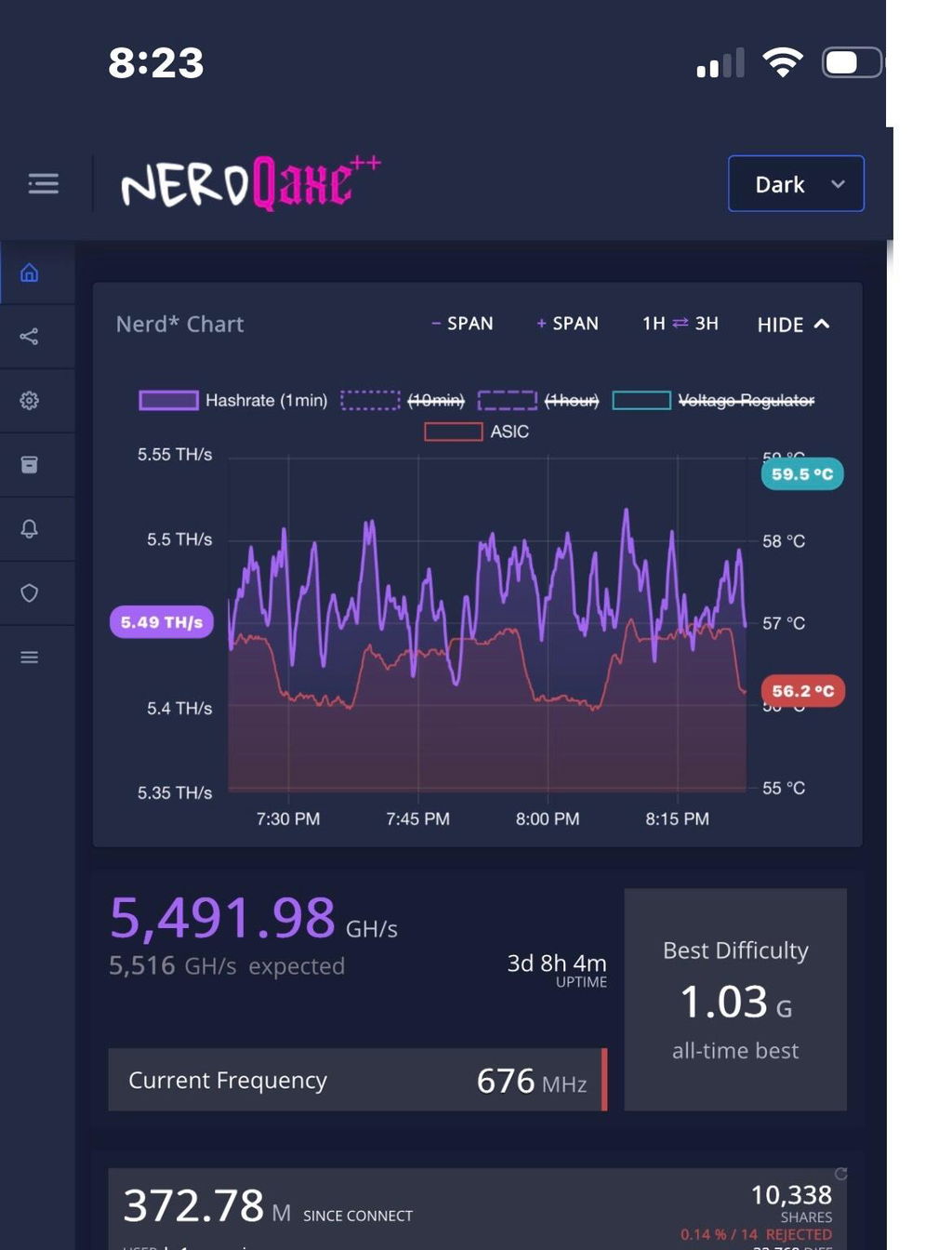
After the restart, open the dashboard and check that hashrate climbs toward about 2.4 TH/s and the share count goes up. Give it a few minutes to settle.
- Hashrate ramps up, then hovers near 2.4 TH/s at stock settings. It moves around from second to second, so look at the longer average.
- Accepted shares should keep increasing. This means the pool is receiving your work.
- Temperature typically sits in the 60 to 70°C range under load.
- Display on the miner shows the same live stats, so you can check it without a computer.
What the numbers mean
|
Stat |
Meaning |
What you want |
|---|---|---|
|
Accepted shares |
Valid work the pool accepted |
Steadily rising |
|
Rejected shares |
Work the pool refused, often from instability or connection trouble |
Close to zero |
|
Stale shares |
Valid work that arrived after the pool moved to a new block template |
Low |
|
Hardware errors |
Calculation errors inside the chip, higher when settings are pushed too far or power or heat is a problem |
Low |
|
Efficiency |
Power used per terahash (J/TH) |
Stable |
If hashrate stays at zero, go to the troubleshooting section.
8. Tuning basics
Leave the Gaia at stock settings for the first day. It ships at 350 MHz and 940 mV, which gives about 2.4 TH/s, and that is the setting the guide above assumes. Frequency, core voltage and fan controls all live on the Settings page. Overclocking / raising frequency voids your warranty.
If you want more hashrate later:
- Change one setting at a time, by a small step.
- Click Save and Restart.
- Automatic Fan Control is recommended. Watch temperature, hardware errors and rejected shares for several hours before changing anything else.
- If the miner crashes, runs hot or shows rising errors, go back to stock.
One user report shows 420 MHz running stable, while at 440 MHz the voltage regulator shut down. Treat that as a warning, not a target: chips differ, and pushing voltage and frequency far past stock can damage the board. Damage from extreme settings is usually treated as user damage.
[Screenshot: Settings page showing frequency, voltage and fan controls]
9. Firmware updates and factory reset
Most people never need this section. Use it if the miner will not boot, you want to update, or you need a clean start.
Update firmware
- Open the dashboard and check the firmware version on the system page.
- Compare it with the version recommended for the Gaia. [Add the firmware version and flasher link you want customers to use.]
- Flash only firmware built for the Gaia (BM1373). Firmware for other Nerdaxe or Bitaxe models can leave the miner unable to hash.
Factory reset or recover a bricked miner
- Connect the Gaia to your computer with a USB-C data cable.
- Put the board in bootloader mode. Hold the Boot button, tap Reset, then release Boot.
- Open the web flasher in a Chrome-based browser, select the Gaia's port, and flash the recommended firmware.
- When it finishes, unplug and replug the power and repeat sections 4 to 6.
[Screenshot: Boot and Reset buttons on the display board]
[Screenshot: web flasher with the Gaia selected]
Note the Wi-Fi name, password and Bitcoin address before you reset, since a factory reset clears your settings.
10. Troubleshooting and FAQ
|
Problem |
Likely cause |
What to try |
|---|---|---|
|
Display stays dark, fan does not spin |
Power supply not fully connected or faulty |
Reseat the power plug, try another outlet, confirm the supply is 12V and delivers power under load |
|
No setup Wi-Fi network appears |
Miner not finished booting, or already joined a network |
Wait a minute, then check the display for an IP address |
|
Setup page does not open |
Phone or laptop still on another network |
Confirm you are on the Nerdaxe network, then go to |
|
"No AP Found" |
Wrong Wi-Fi name or password, or a 5 GHz-only network |
Re-enter credentials carefully, use a 2.4 GHz network |
|
Cannot open the dashboard |
Device is on a different network |
Put your phone or computer on the same Wi-Fi, then re-check the IP on the display |
|
Hashrate is zero |
Pool or address entered wrong, or no internet |
Check pool URL, port, address, then save and restart |
|
Pool shows worker offline |
Pool page lags |
Wait a few minutes and check you are viewing the right address or worker |
|
Rejected shares or hardware errors rising |
Overclock, heat or weak power |
Return to stock, improve airflow, use the supplied power supply |
|
Miner restarts or overheats |
Poor airflow or settings too aggressive |
Move to an open area, return to stock settings |
FAQ
Can I power it over USB-C? No. USB-C is for flashing and recovery. Use the supplied 12V power supply for mining.
Can I mine other coins? The Gaia hashes SHA-256 only, so it cannot mine other algorithms such as Scrypt or Ethash.
Can I use a Lightning address? No. Use an on-chain Bitcoin receiving address.
Is it safe to leave it running 24/7? It is designed for continuous use. Follow the safety section, and power it down at once if you see damage, discoloration or smell burning.
What should I send support? Include your order number, a short description of what happens, photos of the board and power supply, screenshots of the dashboard and settings, and recent logs from the dashboard.